Cloud
Github Actions Uploading to Google Drive
Activate Google Drive API
Google Cloud Console > 左上角三條橫線圖示 Navigation Menu > API 和服務(APIs & Services) > 程式庫(Library) > search API 和服務(APIs & Services) > type in Google Drive API > Enable Google Drive API
設定 OAuth 同意畫面
API 和服務 > OAuth 同意畫面 > 左上角 Overview > Start > 填上 project name(如 SABR-Cheyette PDF Publisher)和 email > next > external > next > email again > I Agree > Create
加入 Google Drive 權限範圍
左邊 Data Access > Add or remove scopes > In Manually add scopes type in
https://www.googleapis.com/auth/drive> Add to table > Update Save
Switch from testing to production environment
左邊目標對向(Audience) > 發布應用程式(Publish app) > Confirm
It’ll say Unverified but that’s ok. No verification needed if less than 100 users
建立用戶端
左邊用戶端 > 建立用戶端
Application type: Desktop app
Name: SABR-Cheyette GitHub Actions
Creat > Download JSON > rename and save as
C:/Temp/sabr-drive-auth/credentials.json
本地設定
pip install --upgrade google-api-python-client google-auth-httplib2 google-auth-oauthlib建立
C:/Temp/sabr-drive-auth/get_refresh_token.py: ```python from google_auth_oauthlib.flow import InstalledAppFlow
SCOPES = [“https://www.googleapis.com/auth/drive”]
flow = InstalledAppFlow.from_client_secrets_file( “credentials.json”, SCOPES, )
credentials = flow.run_local_server( port=0, access_type=”offline”, prompt=”consent”, )
print(“\nGOOGLE_DRIVE_REFRESH_TOKEN:\n”) print(credentials.refresh_token) ``* 本地設定(cont.) *cd C:/Temp/sabr-drive-auth/ & python
get_refresh_token.py> login google account in > advance > 前往「SABR-Cheyette PDF Publisher」(不安全) > Continue * Will see "The authentication flow has completed. You may close this window" in browser and refresh token in cmd prompt * Add GitHub Secret * Go to github repo > settings > 左邊 Secrets and variables > Actions > New repository secret > Add 4 Names/Secrets: * GOOGLE_DRIVE_REFRESH_TOKEN: (copy and paste the refresh token from cmd prompt) * GOOGLE_DRIVE_CLIENT_ID:client_idfrom the JSON just downloaded * GOOGLE_DRIVE_CLIENT_SECRET:client_secretfrom JSON * GOOGLE_DRIVE_FOLDER_ID: see the end ofhttps://drive.google.com/drive/folders/FOLDER_ID`
Automate App (by LammaLab) 自動下載到手機
Below is not working on boox
Settings > Privileges > access to manage all files
右下角 + > 右下角 + again > search and add Google Drive download > double click the Google Drive download block
Google account: YOUR_GOOGLE_ACCOUNT
Remote path:
/SABR-Cheyette PDF Archive/*.pdfLocal path: Download
Drag Flow beginning OK to Google Drive download IN and drop
右下角 + > search and add Delay > double click > set Duration to 2 mins
Drag Google Drive download OK to Delay IN and drop
Drag Delay OK back to Google Drive download IN and drop to form a loop
Exit > Start > turn off “Manage app if unused”(管理未使用的應用程式)> Grant > Start
Settings > Workarounds > Timing accuracy workaround > check Alarm clock & native timer
cuPyNumeric
cuPy 只能跑在一個 GPU 上,cuPyNumeric 跑在 GPU grid 上
Setting Up Worker Machines(沒試過)
1. System Prep on Each Machine
Make sure every node has
Linux OS (Ubuntu or CentOS recommended, use WSL on windows)
NVIDIA GPU and CUDA driver (check with
nvidia-smi)Python 3.11–3.13
OpenMPI and UCX installed for inter-node communication
No need for CUDA Toolkit or
nvccunless you’re compiling from source
2. Install cuPyNumeric
On each machine, create a venv and install nvidia-cupynumeric which will install Legate automatically; no need to install legate separately
python -m venv legate-env
source legate-env/bin/activate
pip install nvidia-cupynumeric
3. Set Up Networking
To enable distributed execution: * Configure passwordless SSH between all machines:
ssh-keygen -t rsa -b 4096 -N ""
ssh-copy-id user@worker-node
Ensure machines are on the same subnet or have direct IP access
Open MPI-related ports in firewalls (e.g., TCP 10000–20000)
Optional: Add IPs and hostnames to
/etc/hostsfor easier referenceMore details in the next subsection
4. Launch Distributed Jobs
From your head node, use the legate launcher:
legate --gpus <gpus_per_node> \
       --nodes <num_nodes> \
       --ranks-per-node <ranks> \
       --launcher mpirun \
       ./your_script.py
Example for 2 nodes with 4 GPUs each:
legate --gpus 4 --nodes 2 --ranks-per-node 1 --launcher mpirun ./main.py
5. Test Your Setup
Try this simple script to verify GPU execution:
from legate.timing import time
import cupynumeric as np

size = 100_000_000
start = time()
a = np.random.rand(size)
b = np.random.rand(size)
result = np.dot(a, b)
end = time()

print("Dot product:", result)
print(f"Elapsed time: {(end - start)/1000:.2f} ms")
Run it with
legateand scale up the number of GPUs to see performance gains
Step-by-Step Guide To Set Up Networking
1. Assign Hostnames or IPs
Pick one machine to be your head node (you’ll run python scripts with cupynumeric from here). Get the IP addresses or hostnames of all machines:
hostname
ip a   # or ifconfig
Create a simple list like:
192.168.1.10  # Head node
192.168.1.11  # Worker 1
192.168.1.12  # Worker 2
2. Create an SSH Key on the Head Node
Enable passwordless SSH, which MPI requires for launching processes on remote nodes.
ssh-keygen -t rsa -b 4096 -N "" -f ~/.ssh/id_rsa
~/.ssh/id_rsais the default file location-N ""sets an empty passphrase
4. Add Hostnames/IPs to /etc/hosts (Optional)
This helps MPI recognize the machines easily.
sudo nano /etc/hosts
Example entry:
192.168.1.11    node1
192.168.1.12    node2
Repeat this on each machine. Use static IPs if possible
5. Open Firewall Ports
MPI and UCX may require open TCP ports (especially if you use mpirun): * Suggested range: TCP 10000–20000 * Also allow SSH (TCP 22) * For Ubuntu UFW, run:
sudo ufw allow 22
sudo ufw allow 10000:20000/tcp
Or disable firewall (only in isolated or test setups):
sudo ufw disable # or sudo systemctl stop firewalld
6. Install OpenMPI + UCX
Ensure both are installed and compatible across machines.
sudo apt install openmpi-bin libopenmpi-dev
pip install ucx-py
Optionally verify:
mpirun --version
7. Quick Connectivity Test
Try running a simple MPI command:
mpirun -np 2 -host node1,node2 hostname
or
mpirun -np 2 -host 192.168.1.10,192.168.1.11 hostname
Should return the hostname of each node
8. Try Running a cuPyNumeric Job
From head node:
legate --gpus 4 \
       --nodes 2 \
       --ranks-per-node 1 \
       --launcher mpirun \
       --hostfile ./nodes.txt \
       your_script.py
Where nodes.txt contains:
192.168.1.10 slots=4
192.168.1.11 slots=4
setup.sh for Worker Machine Configuration
#!/bin/bash

# === Setup Variables ===
SSH_USER="your_username"      # Change to your actual SSH user
HEAD_NODE_IP="192.168.1.100"  # IP of your head node
HOSTNAME=$(hostname)

echo "=== Starting setup on $HOSTNAME ==="

# === 1. Generate SSH Key if not exists ===
if [ ! -f ~/.ssh/id_rsa ]; then
  echo "--- Generating SSH key..."
  ssh-keygen -t rsa -b 4096 -N "" -f ~/.ssh/id_rsa
else
  echo "--- SSH key already exists. Skipping generation."
fi

# === 2. Copy Public Key to Head Node ===
echo "--- Copying SSH key to head node..."
ssh-copy-id $SSH_USER@$HEAD_NODE_IP

# === 3. Update /etc/hosts ===
echo "--- Updating /etc/hosts with head node IP..."
echo "$HEAD_NODE_IP    headnode" | sudo tee -a /etc/hosts

# === 4. Open Firewall Ports (Ubuntu) ===
echo "--- Configuring firewall..."
sudo ufw allow ssh
sudo ufw allow 10000:20000/tcp
sudo ufw enable

# === 5. Install OpenMPI and UCX ===
echo "--- Installing OpenMPI and UCX..."
sudo apt update
sudo apt install -y openmpi-bin libopenmpi-dev
pip install --quiet ucx-py

# === 6. Test MPI Connectivity ===
echo "--- Testing MPI connectivity with hostname command..."
mpirun -np 1 hostname

echo "=== Setup completed on $HOSTNAME ==="
Notes
Replace
your_usernameand192.168.1.100with actual valuesRun this script on each worker machine. You can also use SSH to distribute it from your head node if needed
Add more host entries as needed to
/etc/hostsif you plan to use hostnames likenode1,node2, etc.For CentOS or other distros, package manager commands may need adjustment
Blocking a Website
Windows
Run notepad as administrator
Open
C:\Windows\System32\drivers\etc\hostsAdd “127.0.0.1 www.google.com” in the end to block google.com
iPad
Settings > Screen Time > turn on “Content & Privacy Restrictions” > App Store, Media, Web & Games > Web Content > Only Approved Websites
cmd Freeze Issue
如果選取了任何東西 cmd 就會卡住,不自動執行下一個 python script
去 cmd property 把 QuickEdit Mode 取消就會一直自動跑下去了
Environment Variables
有兩種不同 level 的環境變數:user 和 system,只有要改 system 時需要 Admin right
Windows:start > Edit Environment Variables for Your Account
GCC Options
-o:output 檔名
-fPIC:Generate position-independent code (PIC) suitable for use in a shared library 並非所有硬體上都有這個選項
-shared:產生 shared object(so),可被 link 到別的 object 上成為一個 executable。要跟 -fPIC 一起用
-c:編譯但不連結
-I:include,例如
gcc -fPIC -c lib_swig.c lib_swig_wrap.c -I/srv/conda/envs/notebook/include/python3.7m因為需要這個 path 裡的Python.h
Linux
SQL
SQLAlchemy:在 windows 裡 db 要這樣寫:
sqlite:///C:\\Users\\Username\\AppData\\Roaming\\Appname\\mydatabase.db
[2]:
from sqlalchemy import create_engine, Column, Integer, String, ForeignKey
from sqlalchemy.ext.declarative import declarative_base
from sqlalchemy.orm import sessionmaker, relationship

Base = declarative_base()

class User(Base):
    __tablename__ = 'person'
    user_id = Column('id', Integer, primary_key=True)
    user_name = Column('username', String, unique=True)

engine = create_engine('sqlite:///users.db', echo=True)
Base.metadata.create_all(bind=engine)
Session = sessionmaker(bind=engine)

session = Session()

user = User()
user.user_id = 0
user.user_name = 'mary'
session.add(user)
session.commit()

users = session.query(User).all()
for user in users:
    print(user.user_name, user.user_id)

session.close()
2021-05-13 23:07:11,496 INFO sqlalchemy.engine.base.Engine SELECT CAST('test plain returns' AS VARCHAR(60)) AS anon_1
2021-05-13 23:07:11,497 INFO sqlalchemy.engine.base.Engine ()
2021-05-13 23:07:11,499 INFO sqlalchemy.engine.base.Engine SELECT CAST('test unicode returns' AS VARCHAR(60)) AS anon_1
2021-05-13 23:07:11,500 INFO sqlalchemy.engine.base.Engine ()
2021-05-13 23:07:11,502 INFO sqlalchemy.engine.base.Engine PRAGMA main.table_info("person")
2021-05-13 23:07:11,502 INFO sqlalchemy.engine.base.Engine ()
2021-05-13 23:07:11,503 INFO sqlalchemy.engine.base.Engine PRAGMA temp.table_info("person")
2021-05-13 23:07:11,504 INFO sqlalchemy.engine.base.Engine ()
2021-05-13 23:07:11,506 INFO sqlalchemy.engine.base.Engine
CREATE TABLE person (
        id INTEGER NOT NULL,
        username VARCHAR,
        PRIMARY KEY (id),
        UNIQUE (username)
)


2021-05-13 23:07:11,507 INFO sqlalchemy.engine.base.Engine ()
2021-05-13 23:07:11,515 INFO sqlalchemy.engine.base.Engine COMMIT
2021-05-13 23:07:11,518 INFO sqlalchemy.engine.base.Engine BEGIN (implicit)
2021-05-13 23:07:11,520 INFO sqlalchemy.engine.base.Engine INSERT INTO person (id, username) VALUES (?, ?)
2021-05-13 23:07:11,520 INFO sqlalchemy.engine.base.Engine (0, 'mary')
2021-05-13 23:07:11,523 INFO sqlalchemy.engine.base.Engine COMMIT
2021-05-13 23:07:11,530 INFO sqlalchemy.engine.base.Engine BEGIN (implicit)
2021-05-13 23:07:11,531 INFO sqlalchemy.engine.base.Engine SELECT person.id AS person_id, person.username AS person_username
FROM person
2021-05-13 23:07:11,532 INFO sqlalchemy.engine.base.Engine ()
mary 0
2021-05-13 23:07:11,534 INFO sqlalchemy.engine.base.Engine ROLLBACK
inotify-tools
可以 set up 一個 watcher 讓所有 ipynb file 每次 ctrl-s 就自動 cnp
Gitpod
Prefix any Git repository URL with
gitpod.io/#Python Debug:
去
.theia/launch.json改 configF9 放 break point,F5 debug
VS Code
去 Dashboard > Settings > Preference 切換
-
官方的 C/C++ extension 不發佈到 Open VSX,所以在 extension tab 裡就找不到
C/C++ Native Debug 設定
g++ -g main.cpp編譯launch.json裡放這一段:
{
    "type": "gdb",
    "request": "launch",
    "name": "Debug Hello World (GDB)",
    "target": "./cpp/a.out",
    "cwd": "${workspaceRoot}",
    "valuesFormatting": "parseText"
}
target 是編譯好的 executable
設定好之後要重開 IDE 才能用
同樣的設定檔放到
.vscode/裡面之後還是不能在 cpp 檔放 breakpoint。目前只有 Theia 可以 debug c++
Sign in GitHub in VS Code
Sign in 之後可以直接在 VS Code 看到這個 repo 的 PR 和 Issues
Dashboard > Settings > Integrations > GitHub > Edit Permissions > check user:read
QuantLib Setup
Build QuantLib and build example for debugging
sudo apt-get update
sudo apt-get install -y libboost-all-dev automake autoconf libtool
./autogen.sh
./configure --with-boost-include=/usr/include/boost
make
sudo make install
sudo ldconfig
cd Examples/EquityOption/
g++ -g EquityOption.cpp -o EquityOption -L../../ql/.libs/libQuantLib.so -lQuantLib
./EquityOption
Save the above as
build_and_debug_quantlib.shand
chmod +x ./build_and_debug_quantlib.sh
In
.gitpod.yml(see examples here)
[ ]:
tasks:
  - name: Build and Debug QuantLib
    init: ./build_and_debug_quantlib.sh
要 prebuild 要先把一個 repo 設成 Project
gitpod.io dashboard > Project > New Project > choose QuantLib
第一次要 build 超過一小時
Install C/C++ Extension Pack v0.10.0 by franneck94
.vscode/launch.json
{
    "version": "0.2.0",
    "configurations": [
      {
        "name": "C++ Debug",
        "type": "lldb",
        "request": "launch",
        "program": "${workspaceFolder}/Examples/EquityOption/EquityOption",
        "initCommands":["settings set target.disable-aslr false"],
        "args": [],
        "cwd": "${workspaceFolder}/Examples/EquityOption"
      }
    ]
}
What’s going on in
build_and_debug_quantlib.sh?The
-yaftersudo apt-get installmeans yes to allboost 安裝好以後 lib 檔在
/usr/lib/x86_64-linux-gnu裡(或用find -name *boost*找)Linker 知道這個 folder 所以在
./configure不需要 specify library directory,只需要 include directory
g++ -g EquityOption.cpp -o EquityOption -L../../ql/.libs/libQuantLib.so -lQuantLib-g: 編譯過程中產生 debug symbolsDebug symbols provide additional information that allows the debugger to map the compiled executable back to the original source code.
EquityOption.cpp: 要編譯的原碼-o EquityOption: output executable file name-L../../ql/.libs/libQuantLib.so: path of the QuantLib library-lQuantLib: 要連結的 library 名字
Docker
Clone
docker run --name repo alpine/git clone https://github.com/docker/getting-started.git
docker cp repo:/git/getting-started/ .
Build
cd getting-started
docker build -t docker101tutorial .
Run
docker run -d -p 80:80 --name docker-tutorial docker101tutorial
Share (need to log into Docker Hub)
docker tag docker101tutorial {userName}/docker101tutorial
docker push {userName}/docker101tutorial
Locally build the docker image of a binder and push to Docker Hub
repo2docker a github repo (took 4 hours to build sandbox-stable, resulting image of size 8G)
docker tag (ugly_long_tag_name):latest beginnersc/sandbox-stable:latestdocker push beginnersc/sandbox-stable:latest
只印出 Dockerfile,不 build image
jupyter-repo2docker --no-build --debug https://github.com/beginnerSC/sandbox-stable
Heroku
Kaffeine: ping your Heroku app every 30 minutes
There are other ways. Search “how to keep your free heroku app alive and prevent it from going to sleep betterprogramming”
Delete an app: Heroku dashboard > myapp > settings > delete
Deploying Docker Image
install heroku cli:
curl https://cli-assets.heroku.com/install.sh | sh要 log in 兩次。先 login 到 cli 才能 login 到 container
heroku login -iheroku container:login
只有 Jupyter-x-Docker-on-Heroku deploy 成功,拿其它 Dockerfile 試都失敗,如 Jupyter Docker Stacks 裡的 base image 的 Dockerfile
heroku create myapp到 Jupyter-x-Docker-on-Heroku/conf/jupyter.py 裡改密碼和 public IP address
git clone https://github.com/beginnerSC/Jupyter-x-Docker-on-Herokucd 到 Dockerfile 所在目錄
heroku container:push web -a myappheroku container:release web -a myappheroku open
如果打不開,用
heroku logs -a myapp查看錯誤訊息Deploy 成功之後要在內網用要手動改 https
把 Jupyter-x-Docker-on-Heroku/Dockfile 的 base image 換成 Jupyter Docker Stacks 裡的 image 結果失敗而且要 build 很久(不知道 heroku 有沒有 image size 限制)
如果最後
CMD ["./scripts/postBuild.sh"]遇到 permission error 就改成CMD ["jupyter", "lab", "--config", "./jupyter_notebook_config.py"]不是最後一行的 permission error 可以改成 chmod u+x program_name
Free DB Hosting and Free Backend Hosting Options
Jupyter C++ Kernel on WSL2
Install WSL and the Ubuntu Linux Distribution
The below steps install the distribution to the C drive. We will move it to D drive later
In powershell, install wsl:
wsl --install
Reboot the computer
See what linux distributions are installed in this computer (now empty):
wsl --list --verbose
See what distributions you can download:
wsl --list --online
Install the
Ubuntudistribution (or any available distribution name listed above)
wsl --install -d Ubuntu
Open Ubuntu from start menu to set up ID and password
Close and open powershell again. Now the installed distribution will be found
wsl --list --verbose
Move to D Drive
Below Ubuntu is the distribution name
Create the
D:\WSL\UbuntufolderExport the installed distribution
wsl --export Ubuntu D:/WSL/Ubuntu/backup.tar
Unregister the distribution. It will be removed from the C drive
wsl --unregister Ubuntu
Import the distribution in the D drive
wsl --import Ubuntu D:/WSL/Ubuntu D:/WSL/Ubuntu/backup.tar --version 2
Python and Environment
Open Ubuntu in the start menu and run
sudo apt update
sudo apt install python3-pip
In windows create the folder
D:/pyscripts/sandbox, and in Ubuntu run
cd /mnt/d/pyscripts/sandbox
sudo apt install python3-poetry
This will install poetry 1.8.2 (as of Feb 2025) which recognizes the shell command. Then install jupyter in a new venv:
poetry init
poetry shell
poetry add jupyterlab
Jupyter C++ Kernel (xeus-cling)
xeus-cling is distributed through the conda-forge channel. You cannot pip install it. You can only mamba install it. But to do that you need to install conda and mamba first
wget https://repo.anaconda.com/miniconda/Miniconda3-latest-Linux-x86_64.sh
bash Miniconda3-latest-Linux-x86_64.sh
Follow the steps. I say yes to every question
When done, close Ubuntu and open again. Now run
conda --version
conda install -c conda-forge mamba
mamba install -c conda-forge xeus-cling
Now because you installed Jupyter and xeus-cling independently, you have to tell Jupyter to pick up the new kernels:
Create xcpp20 and xcpp23 kernels
In windows file explorer go to
\\wsl$Go to
\Ubuntu\home\beginnersc\miniconda3\share\jupyter\kernelsCopy the
xcpp17folder, paste twice, and rename toxcpp20andxcpp23In each newly created folder:
Delete all *.identifier files. Those are likely by windows when you make copies in windows
Modify kernel.json to c++20 (and c++23) everywhere
This will not really give you fully supported c++20 and 23 because the clang version is too old
In Ubuntu, run
cd ~
cd /mnt/d/pyscripts/sandbox
poetry shell
jupyter kernelspec install /home/beginnersc/miniconda3/share/jupyter/kernels/xcpp14 --sys-prefix
jupyter kernelspec install /home/beginnersc/miniconda3/share/jupyter/kernels/xcpp17 --sys-prefix
jupyter kernelspec install /home/beginnersc/miniconda3/share/jupyter/kernels/xcpp20 --sys-prefix
jupyter kernelspec install /home/beginnersc/miniconda3/share/jupyter/kernels/xcpp23 --sys-prefix
jupyter kernelspec uninstall xcpp14
jupyter lab
Copy the url
http://localhost:8888/lab?token=..., including token, and paste to browser to start JupyterLab with C++ kernel
JupyterLab
Check my JupyterLab version:
jupyter --version可以用
get_ipython().profile_dir.startup_dir檢查 startup script 要放在哪用 All the Kernels 可以在所有有安裝的 Kernel 間互相切換,像 cell magic
%%javascript,但會失去珍貴的顏色,所以灌了可是沒在用:>xcpp17 #include <iostream> std::cout << "test" << std::endl;目前 xeus-cling 沒有 cell magic 直接切換,但有這個 request
Paste image from clipboard: working in notebook but not recommended
it won’t compile to pdf
if paste multiple images in the same nb file, sphinx will display the last one only
把每個圖的 alt text 改不一樣就可以修好這個問題(貼上的時候預設都是 image.png)。這個 issue 有提到
even if one only pastes one image, RTD will compile to pdf but the size of the image still won’t be correct
Equation Numbering Not Working
jupyter_contrib_nbextensions 是一個所有 unofficial (classic) Jupyter notebook extension 的合集,裡面有 Equation Numbering
2020/9 為止還沒修好。看這個 issue
nbconvert to pdf
No section numbers:
### my heading {-}這樣 exported pdf 只會有 my heading,前面不會有數字 1.1.1cell content 置中:放在
\begin{center} ... \end{center}block 裡
-
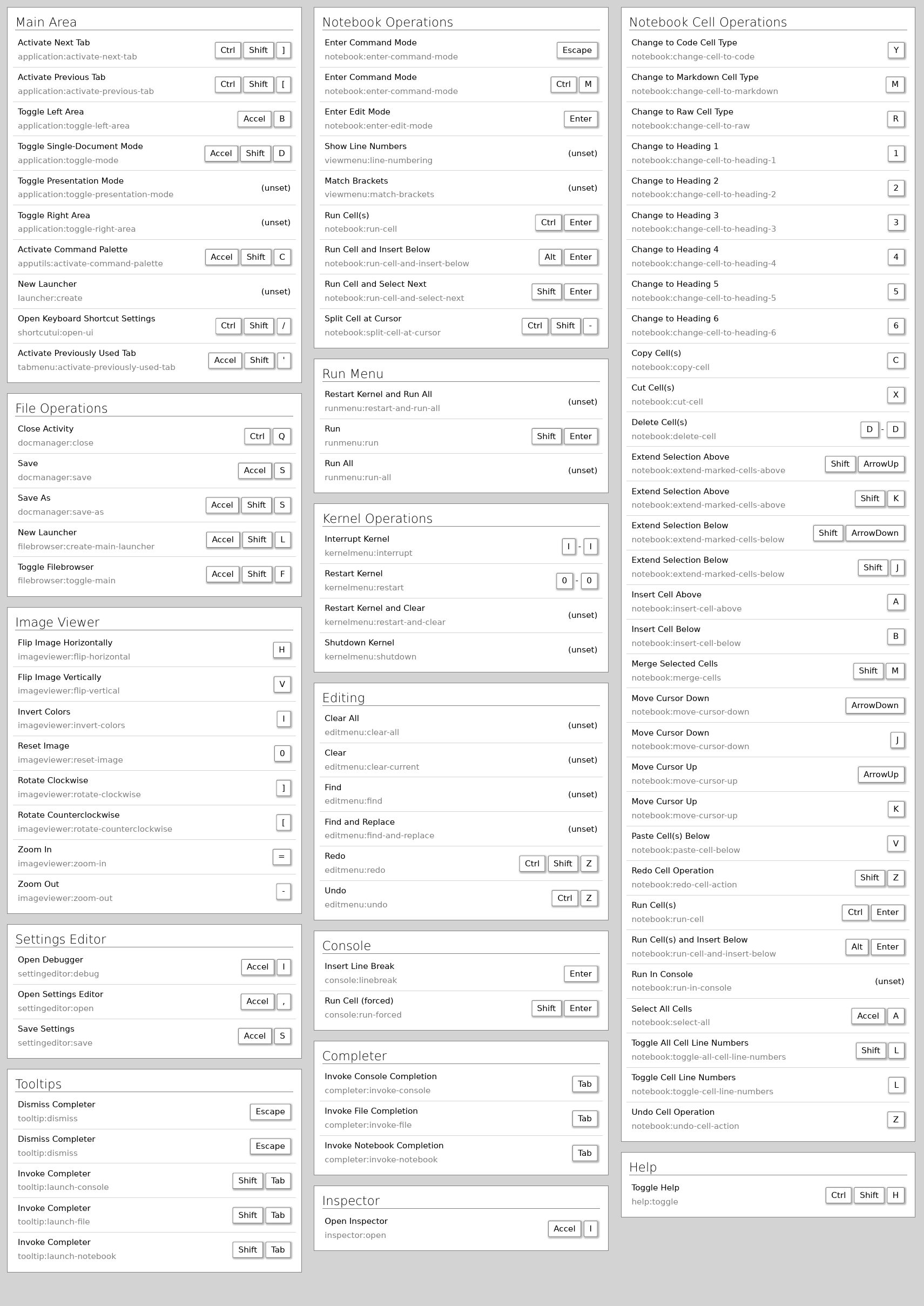
Toggle left area: Ctrl + B
Close current tab: Alt + W
Splitting a cell: Ctrl + Shift + -
Merge seleceted cells: Shift + M
Switch tabs: Ctrl + Shift + ]
Restart Kernel: 00
Interrupt Kernel: II
Change to code cell: Y
Clear output of code cell: MY(先轉成 markdown 再轉回來)
Poetry
Config poetry to set venv in D drive and check
poetry config virtualenvs.path "D:\\Users\\zhang\\AppData\\Local\\pypoetry\\Cache\\virtualenvs"poetry config --list
GitHub
-
in:name spring boot stars:>3000
in:readme
in:description 微服務 language:java pushed:>2019-09-03
diff 不同版本:在網址後面輸入 /compare
Issue:留言區,feature/bug 追蹤系統,可以是 open/closed
反應項目是否活躍的重要指標
Pull requests (pr):貢獻項目
Projects:項目管理工具,像大看板,可以開 projects 在裡面加 to do list, doing list 等
Insights:項目統計信息
Settings:各種服務
github.io 網站
webhooks 事件觸發,例如一收到 pull request 就寄 email
刪除 repo,publish 或轉 private
從 Teminal push 到 github(
git remote add和git push裡的-u都是第一次推送才需要):git add * git commit -m "test: push from code ocean" git remote add github https://github.com/beginnerSC/misc.git git remote -v git push -u github masterDefault branch name:
創建一個新的 repo 時系統預設 default branch name 是 main,這樣就沒辦法 pull master。要改要去 Settings > Repositories > Repository default branch
GitHub Pages
-
每一個 repo 都可以變成一個子頁,網址是 https://username.github.io/reponame ,只要去該 repo Settings > GitHub Pages > Source 選想要 publish 的 branch。要有 index.html 或 README.md
Theme
沒有 index.html 時 GitHub Pages 會自動抓 README.md 套上 theme(沒選 theme 的話就是白的)
去這裡改 theme:Repo Settings > GitHub Pages > Theme Chosser,改完之後會 repo 裡會自動出現
_config.yml預設主標是 repo name,副標空白,可以去
_config.yml加title: 這是主標description: 這是副標
實測預設不顯示 View on GitHub 按紐,可以去
_config.yml打開github: is_project_page: true上面這個 indent 一定要是 two space,這是 Cayman theme 的規定(其它 theme 應該也一樣)
實測不能放空的
google_analytics:不然_config.yml會壞掉如果 README 的第一行是標題(h1 h2 都一樣),會自動被抓到 page title(browser tab 上顯示的字),如果 README 最開頭放一些簡單的說明而不是標題,page title 才會去抓 site title,也就是
_config.yml裡的那個
網頁 Redirect
空白 html 裡放
<meta http-equiv="refresh" content="0; url=http://example.com/" />太舊的 browser 可能會失敗所以另外放一個 link
<p><a href="http://example.com/">Redirect</a></p>
Git LFS
超過 50 MB 的檔案沒辦法直接 git commit
下載安裝 git-lfs(看起來在 binder 直接把 git-lfs 放進 apt.txt 裡就成功了)
指定要用 lfs track 的檔案類型,例如 pdf 和 csv,然後 add .gitattributes。之後就可以正常使用 git commit 和 push 了
git lfs install git lfs track "*.pdf" git lfs track "*.csv" git add .gitattributes
Dashboarding Frameworks
Voilà
可以做動態網頁,backed by Jupyter server,也可以佈署到 mybinder。用 ?urlpath=voila,參考 Voila GitHub page 裡的 binder link
直接指向一個 app 的 link 長這樣:https://mybinder.org/v2/gh/yc14e/nb2pdf/master?urlpath=voila/render/nb2pdf.ipynb
把 output cell 呈現出來。xwidgets 應該也能呈現
實測 HoloViz Panel 不太能 render,因為 Voila 遇到 JavaScript 會有很多問題
在 JupyterLab 上開發時 notebook 上方有 Render with Voila 按紐
Layout
有 gridstack template 可以控制 dashboard layout(目前 sandbox-stable 上沒有安裝)
ipywidgets 裡有 HBox 和 VBox 可以接受 markdown,html 甚至 css
可以研究 jupyter-flex
在 Terminal 不用 browser 打開來 debug:
voila --no-browser --debug my_notebook.ipynb實測無法 render 檔名有空白字元的 notebook
RISE Slideshow
如果有 backend server,用 rise slideshow 也可以 “deploy” webapps,需要
hide code(看下面的討論)
實測 nb2pdf 的 output form 會被拉長,沒有照原比例呈現
靜態的 slides 很多方法可以 deploy
nbviewer 把 url 裡的 tree 改成 blob
這招其實可以呈現任何 html 檔,例如 login page:
https://nbviewer.jupyter.org/github/beginnerSC/beginnersc.github.io/blob/master/index.html
目前 render bokeh plots 還有很多問題。有 backend server 時呈現是沒問題的
-
jupyter nbconvert myslides.ipynb --to slides --reveal-prefix ../reveal.js,或者直接用滑鼠點實測 Hide_code_slides 和 reveal.js Slides 只能選一個 Export。hide_code 沒辦法跟 RISE 結合所以砍掉了
找不到怎麼把 matplotlib 畫出來的圖置中。Google 上的解答不 work
chalkboard
Notebook Metadata 裡加:
"rise": { "enable_chalkboard": true }true後面不能有逗號,如果 Metadata 的 json 語法有錯 Jupyterlab 就會顯示紅框。改完按框左上角的勾勾並存檔需要把 notebook shut down 再重開 chalkboard 才會跑出來
實測 export 之後 chalkboard 會不見
實測只有 export 的結果可以用 esc 看全部的 slides
Hide Code
live 時要 hide code 可以用加下面這兩個 cell(看這個 post 和這個 issue):
%%html <style> .container.slides .celltoolbar, .container.slides .hide-in-slideshow { display: None ! important; } </style> --------------------------------------------------- def hide_code_in_slideshow(): from IPython import display import binascii import os uid = binascii.hexlify(os.urandom(8)).decode() html = """<div id="%s"></div> <script type="text/javascript"> $(function(){ var p = $("#%s"); if (p.length==0) return; while (!p.hasClass("cell")) { p=p.parent(); if (p.prop("tagName") =="body") return; } var cell = p; cell.find(".input").addClass("hide-in-slideshow") }); </script>""" % (uid, uid) display.display_html(html, raw=True)但一旦用了這個,這個 slides 就沒辦法 export 了,只能 live present
直接用 nbconvert 的 flag:
用
!jupyter nbconvert od_export.ipynb --to slides --TemplateExporter.exclude_input=True --no-prompt也可以 render bokeh。這樣就沒有用到 RISE。只要有 nbconvert 就可以這樣 render slides,不需要 RISE有一個
--no-inputflag 但會把 alignment 弄壞加上 reveal.js 會失敗:
jupyter nbconvert export.ipynb --to slides --no-input --reveal-prefix reveal.js
也可以給 nbconvert template(這個 post 很老不知道還能不能用)
或者自己寫按紐
實測在 classic Jupyter Notebook 和 nbviewer 環境下能用,JupyterLab 不能用
要在 sphinx 下用要把
div.input改成div.nbinput
Bokeh and HoloViz Panel
HoloViz Panel 目前(Oct 2020)唯一可以跑遍 widget input combinations 存下結果製造靜態網頁的 framework,然後就可以佈署到 github.io(或 RTD?)
HoloViz Panel 目前沒有 drag and drop,只有按紐的 FileInput
Bokeh 也能做有 widget 的靜態網頁,但需要自己手動先把結果存下來然後用 JavaScript 寫 callback。Plotly Dash 的 callback 就可以用 Python 寫但做出來是動態網頁
-
但 RISE 目前為止只能在 Classic Jupyter Notebook 上用,看這個 issue
Plotly Dash
實測用 Jupyter Dash 做的動態網頁無法透過 Voila 佈署到 mybinder 上,看這個 issue。所以 Jupyter Dash 只能用來在 JupyterLab 裡開發
app.run_server()會暫時佈署到 mybinder 上,可以在開發時測試用用的是 mybinder 配置給這個 JupyterLab 的 node。把目前的網址 lab 以下取代成
proxy/8050就行了。例如https://hub.gke2.mybinder.org/user/beginnersc-sandbox-dash-73nkpf4u/lab/workspaces/auto-F?clone=auto-M變成https://hub.gke2.mybinder.org/user/beginnersc-sandbox-dash-73nkpf4u/proxy/8050
如果有 Voila 以外的辦法可以自動 trigger notebook 執行也可以跑
app.run_server()生成暫時可用的 Plotly Dash 網頁
目前看來還是只能佈署到 Heroku 上
只有 Dash Enterprise 才有 auth,不過有人做了 Flask-Login on Dash App
Jupyter Dash 和 jupyter-plotly-dash 到底有什麼不同?
Heroku for Deployment
可以用來佈署動態/靜態網頁,如 Sphinx documents。不限 framework,不像 Voila 只能呈現 Jupyter notebook 的 output cell
可以用 Flask 加密碼保護
unscalable,訪問量大的話會比 AWS 貴很多,但 AWS 設置起來比 Heroku 複雜多了
Hosting Private Static Site Free
Using Oauth2 Proxy
有空研究
Jupyter Book
Installation
poetry add jupyter-bookpip install jupyter-bookto addfastjsonschemaIf you will build pdf:
poetry add playwrightplaywright install --with-deps chromiumThis could fail behind a corporate firewall, in which case
Download
\\corp.tdsecurities.com\ny-dfs\US_Rates\Vol\Scott\ms-playwright.zipUnzip and put it under
C:\Users\zhang\AppData\Local\
Usage
In project root
jb create docs(it doesn’t have to be docs, it can be any book name you want)if docs folder is there already it will error out
Delete md files (there are 2)
Delete md file items from
_toc.ymlIn
_config.ymlsetexecute_notebooks: 'off'In project root
jb build docsto build htmlIn project root
jb build docs --builder pdfhtmlto build pdf
Equations
自帶 copy button!
Equation numbering can render
認不得
alignblocks試過 amsmath extension 但沒用
Independent equations 放在
$$...$$裡,之前和之後都需要換行符$$...$$裡可以用&=對齊,Jupyter Book 看的懂,但 VS Code 和 sphinx 看不懂
TOC
一定要有 root 而且 root 一定要有一個檔
chapters下不能馬上接sections,至少要放一個檔,看這裡不同的檔轉出來的 html 是不同頁
format: jb-book
root: intro
options:  # The options key will be applied to all chapters, but not sub-sections
  numbered: True
parts:
- caption: Methodologies
  numbered: True
  chapters:
  - file: methodologies/summary
  - file: methodologies/BSDE_BS
  - file: methodologies/BSDE_SABR
  - file: methodologies/DGM_BS
  - file: methodologies/DGM_SABR
- caption: Appendices
  chapters:
  - file: appendices/pytorch
PDF
Build pdf 需要先把所有 html 接在一起變成一頁!所以如果 html 和 pdf 都要 build 應該先 build pdf
playwright產生的 pdf 裡 Equation 有時候會壞掉所以沒什麼用,還是只能靠 texlive
nbsphinx and readthedocs
Import a Project From GitHub to RTD
如果 RTD 不是以 GitHub 註冊的,要先把 GitHub 加到 Connected Services 裡
RTD Dashbord > Settings > Connected Services
RTD Dashboard > Import a Project
Select a repo
Input a project name(不能和 RTD 目前上線的任何 project 重名)
GitHub 端的 webhook 會自動建立,也可以去 RTD 這個 project 裡的 admin > integrations 看
nbsphinx
See sphinx tutorial new, old & nbsphinx doc
建一個 folder docs
進到 docs 裡
sphinx-quickstart開啟 wizard[] 裡的是預設值
release 隨便打,例如 0.1
跑完會出現 docs/source/conf.py,把
'nbsphinx'加到extensions裡在 docs 裡
make html,生成的 index.html 在 docs/build/html 裡在 docs/source/index.rst 裡的 toctree 很重要不能 delete 不然 sphinx 會沒辦法 make
可以自己手動改的 index.rst 的 title
在 docs/source 裡新增 ipynb,在 index.rst 的 toctree 裡紀錄 ipynb 的檔名(不需要副檔名)
每個 ipynb file 一定要有 title
toctree 要對齊像這樣:
.. toctree:: :maxdepth: 2 :caption: Contents: <---- 這裡一定要有一個空行 MYIPYNBFILENAME可以加
:hidden:然後就會只出現在網頁左邊也可以改 toctree maxdepth
可以有多個 toctree 用不同的 captions,像 JupyterLab doc
切換成 3rd party readthedoc theme
需要事先
pip install sphinx_rtd_theme到 conf.py import 並更換
html_theme:import sphinx_rtd_theme html_theme = 'sphinx_rtd_theme'
內容全部加完後回到 docs 裡重新
make htmlmake clean刪除所有 build 裡的內容要 render bokeh plots 要看這個 issue
Sphinx 做的網頁目前(Oct 2020)沒辦法在 JupyterLab 正確顯示,local css 會有問題
Two column toc(沒試過)
目前(Apr 2021)要編譯 inline 的圖要在 requirements.txt 裡指定 docutils==0.16。看這個 issue
目前(Aug 2021)下面的組合會出現
AssertionError: assert 'Verbatim' in lines[0] /nbsphinx.py", line 2151, in depart_codearea_latex這個 issue 有人提出 working 的版本組合
docutils==0.16 sphinx>=1.4 sphinx-copybutton ipykernel nbsphinx
nbsphinx 預設執行所有沒有 output 的 input cell。如果有 c++ kernel 的 cell 不想被執行要在 conf.py 裡加
nbsphinx_execute = 'never'強制不執行要執行用 xcpp17 kernel 的 notebook 要在 repo home 用 readthedocs.yml 和 environment.yml 把 xeus-cling 灌進 RTD。看文檔說明
實測用 conda 灌排版會亂掉,不知道少灌了什麼。目前這個 repo home 的
_readthedocs.yml和environment.yml就是灌失敗的檔
code packaging 4.6 裡說加
nbsphinx_prompt_width = 0可以讓 cell 的 prompt(例如In [1]:)消失,實測沒有消失,只是往外推在 code block 加 copy button (sphinx-copybutton)
pip install sphinx-copybutton在 conf.py 的 extensions 裡加
'sphinx_copybutton'sphinx-copybutton 是出自一個 executable books project,裡面還有其它 sphinx extension,例如 sphinx-togglebutton
試不出怎麼在 notebook 裡放 sphinx directives 所以沒辦法在 nbsphnix 裡用 toggle button
hide input cell but not output
預設是 hide。把
.show()和.hide()對調就變成預設 show在預設 hide 的情況下把按紐(<input …>)移走只留下空白的 form,就會把整面的 input 隱起來再也打不開
據說 nbsphinx hidden 可以把 input/output cell 都隱起來不過實測沒有用
internal link hack
直接在 () 裡放同一層裡另一頁的 html 檔名,例如
[blah blah](other.html)也可以指定 section 例如
[blah blah](other.html#See-Also)
Build in RTD
在 RTD 環境配置裡安裝 nbsphinx,在這個 repo 裡創建 requirements.txt 加入以下內容:
sphinx>=1.4 ipykernel nbsphinx在 conf.py 裡加入
master_doc = 'index'不然會出現 contents.rst not found ErrorRTD 預設用
contents.rst作為 entry point 而非index.rst
在 conf.py 裡加入
nbsphinx_allow_errors = True不然用 ipywidgets 時 build 會失敗每次 push 回 GitHub,對應的 RTD project 就會自己重新 build(看 project 裡的 Builds)。也可以自己在 Overview 裡 Build version
RTD 只需要 source 裡的內容就夠了,所以在 local
make clean再 push 回 GitHub 也沒問題make clean完連make.bat和Makefile都可以砍掉(在 DocsTest repo 測過),不過這樣會沒辦法 local build
把這段貼到 conf.py 讓 RTD PDF 編譯中文(繁體中文需要用字型 bsmi)
latex_elements = { # The paper size ('letterpaper' or 'a4paper'). #'papersize': 'letterpaper', # # The font size ('10pt', '11pt' or '12pt'). #'pointsize': '10pt', # # Additional stuff for the LaTeX preamble. #'preamble': '', 'preamble': r''' \hypersetup{unicode=true} \usepackage{CJKutf8} \DeclareUnicodeCharacter{00A0}{\nobreakspace} \DeclareUnicodeCharacter{2203}{\ensuremath{\exists}} \DeclareUnicodeCharacter{2200}{\ensuremath{\forall}} \DeclareUnicodeCharacter{2286}{\ensuremath{\subseteq}} \DeclareUnicodeCharacter{2713}{x} \DeclareUnicodeCharacter{27FA}{\ensuremath{\Longleftrightarrow}} \DeclareUnicodeCharacter{221A}{\ensuremath{\sqrt{}}} \DeclareUnicodeCharacter{221B}{\ensuremath{\sqrt[3]{}}} \DeclareUnicodeCharacter{2295}{\ensuremath{\oplus}} \DeclareUnicodeCharacter{2297}{\ensuremath{\otimes}} \begin{CJK*}{UTF8}{bsmi} \AtEndDocument{\end{CJK}} ''', }RTD 只有 enterprise 才有 private documentation
可以 build 不同 branch 例如 dev,在 dashboard 去 version 裡 activate dev。如果 repo 有 tag 會自動 build stable
RTD autodoc
手動 autodoc:在 rst 裡加入像
.. automodule:: pyod.models.abod :members: :undoc-members: :show-inheritance: :inherited-members:.. autofunction:: func.. automethod:: a_method.. autoclass:: a_class :members::members:後面接想出現在 doc 上的 methods。如果空白,自動顯示所有 public methods(名稱不以底線開頭者)
在 conf.py 裡加入這兩行,autodoc 才找的到 module
[ ]:
import os, sys

sys.path.insert(0, os.path.abspath('../..'))
看 exampy repo 和 doc
或者在 conf.py 裡加入下面這段,sphinx-apidoc 就會自動掃過所有 script 並產生 rst(如 pycircle.rst)
[ ]:
import os
import sys
from sphinx.ext.apidoc import main

sys.path.insert(0, os.path.abspath('../..'))

def run_apidoc(_):
    sys.path.append(os.path.join(os.path.dirname(__file__), '../..'))
    cur_dir = os.path.abspath(os.path.dirname(__file__))
    module = os.path.join(cur_dir, '../..', 'pycircle')
    main(['-e', '-o', cur_dir, module, '--force'])        # cur_dir is the output path *.rst will be in

def setup(app):
    app.connect('builder-inited', run_apidoc)
在 conf.py 的
extensions裡加入:sphinx.ext.autodocsphinx.ext.napoleon讓 autodoc 讀懂 Google 和 NumPy style docstringsphinx.ext.mathjax可以讀懂數學式sphinx.ext.viewcode在 autodoc 產生的 API doc 中有[source]連結
../../pycircle是 module 的路徑在 rst 裡加入
.. toctree:: :maxdepth: 1 :caption: PyCircle API Reference pycircle.rstapidoc 掃遍 package 的過程中會執行所有 script,所以除了 class,function 和
if __name__ == "__main__":block 以外不要在 script 裡寫其它東西-
數學要這樣寫
The FFT is a fast implementation of the discrete Fourier transform: .. math:: X(e^{j\omega } ) = x(n)e^{ - j\omega n}也可以 inline
The value of :math:omega` is larger than 5.`實測 Parameters 上面一定要有空行不然會 build 出亂碼
"""Perform minimax linkage on a condensed distance matrix. <--- 空行 Parameters ---------- dists : ndarray The upper triangular of the distance matrix. The result of ``pdist`is returned in this form. <— 空行 Returns ——- Z : ndarray A linkage matrix containing the hierarchical clustering. See thescipy.cluster.hierarchy.linkagefunction documentation for more information on its structure. “””`
shpinxcontrib-disqus(沒試過)
RTD 預設不 support comments
這個 RTD 站有 comments 但不知道是不是用 Disqus
Binder
可以用 JupyterLab 打開,JupyterLab 裡也有 internet access 可以用 Terminal push 到 github
沒有給 local storage 所以每次改完一定要 commit + push 不然就不見了
有一個小缺點就是 inactive 十分鐘 kernel 就會自己斷掉,不過有 offlinenotebook 就沒有影響了
不要濫用。查看 Usage Guideline
環境配置(from Binder doc)
如果只是要加 python package,可以用一個 requirements.txt 列下需要有哪些 python packages,像這樣:
numpy scipy pandas預設是安裝最新版,也可以指定版本例如
seaborn==0.11.0安裝 C++ Kernel
複製 xeus-cling repo 裡的 environment.yml 放在這裡
boost 也用 conda 灌,不要用 apt,不然 xeus-cling 找不到。看 sandbox-quant 的配置
試了用 conda 灌 fftw 但灌不進去。可以 include 但真正用的時候會有 linking error
Eigen 也用 conda 灌。用之前要先
#pragma cling add_include_path("/srv/conda/envs/notebook/include/eigen3/"),看這裡在 dependencies 下把需要的 python package 加進去
一旦配置了 environment.yml,requirements.txt 會自動被乎略(更 general 的,一旦配置了 Dockerfile,requirements.txt 和 environment.yml 都會自動被乎略)
更多細節看這裡
安裝 R(參考這裡)
創建一個
runtime.txt裡面寫一行r-3.6-2019-09-24。這是 R 在 MRAN 上的一個版本的 snapshot創建一個
install.R裡面列出要安裝的 R packages(Box-Cox Transformation 在 MASS 裡)install.packages("rmarkdown") install.packages("leaflet") install.packages("MASS")這裡用了另一種方法安裝
Jupyterlab extension,例如 toc 要新建在一個 postBuild file 寫
jupyter labextension install @jupyterlab/tocPython debugger 同時需要用 conda 安裝 nodejs 和 xeus-python kernel 和 labextension @jupyterlab/debugger,所以 environment.yml 和 postBuild 都要改
postBuild
postBuild 可以執行任何 bash commands
用 postBuild 安裝 execution time labextension + (用 bash)去 nbextension folder 把這個功能打開的例子(這個是 D. E. Shaw 的 repo)
把 git add, commit, push 寫在一個 command 裡並放到 .bashrc 裡,在 postBuild 裡寫下這段:
echo '\n# git add commit and push in one command \n' >> .bashrc echo 'function cnp() { ' >> .bashrc echo ' git add * ' >> .bashrc echo ' git config --global user.name "beginnerSC" ' >> .bashrc echo ' git config --global user.email "25188222+beginnerSC@users.noreply.github.com" ' >> .bashrc echo ' git commit -a -m "update" ' >> .bashrc echo ' git push ' >> .bashrc echo '} ' >> .bashrc但 push 還是需要敲 GitHub 密碼。如果要避免每次敲密碼應該永遠用 token pull(在 beginnersc.github.io 用 “private” 登入)
安裝 gc
gcrequirespycryptowhich requires gcc:apt-get install gccand thenpip install pycrypto把 gc 放在 binder 裡
chmod +x $HOME/binder/gcecho 'export PATH=$HOME/binder:$PATH' >> .bashrc
最好不要照著 doc install 隨便改寫 environment.yml 和 postBuild。最穩定的辦法還是去找要安裝的 kernel 有沒有 binder link,照抄那個 repo 裡的配置
如果要安裝 latex 沒辦法用 conda 安裝,打開 JupyterLab 再安裝也有權限問題(反正也留不下來),要用 apt.txt,參考 binder-examples/latex:
cron pandoc dvipng ghostscript texlive-fonts-recommended texlive-generic-recommended texlive-latex-base texlive-latex-extra texlive-latex-recommended texlive-publishers texlive-science texlive-xetex texlive-lang-chinesenbconvert to PDF 編譯中文:
在 apt.txt 裡需要有 texlive-lang-chinese
nbconvert 編譯 tex 檔時會用一個 template,要去修改
find ../../.. -name "base.tex.j2" | sort會找出
../../../srv/conda/envs/notebook/lib/python3.7/site-packages/nbconvert/templates/latex/base.tex.j2進到那個 folder 裡用 vim 修改,把
\documentclass[11pt]{article}替換為\documentclass{article} \usepackage{xeCJK}參考這個 issue
實測用 ctex 會把日期也編譯成中文,xeCJK 不會,所以在 template 裡 hard code 永遠用 xeCJK 就可以中英兩種文件都編
有些繁體字沒有字型,例如「複」「裡」會編成亂碼,大扣分!
因為 template 不在 home 之下,要用 postBuild 每次 launch JupyterLab 的時候自動改(去看 sandbox-stable 裡的 postBuild)
開啟 Binder 所需時間
每次 commit 之後第一次開會很慢,因為 binder 根據這些 config 生成了 Dockerfile 並且推送到 Docker Hub 上
加了 c++ kernel 和幾個 python packages 之後 rebuild 竟然要半小時!
如果只改 postBuild,其它沒有動好像會比較快
如果用兩個 repo,一個存內容一個存配置好的環境會快很多(下面有更詳細的說明)
雖然不用自己手動配置但 kernel 在
../../srv/conda/envs/notebook/share/jupyter/kernelsxcpp 相關的執行檔在
../../srv/conda/envs/notebook/bin配置 Dockerfile
創建一個檔案名為 Dockerfile(no extension)放在 sandbox 裡
一旦配置了 Dockerfile,requirements.txt 和 environment.yml 都會自動被乎略
Export notebook as PDF,參考:
nbconver installation 裡有提到需要哪些 texlive package
-
Latex.Online 是一個有付 API 的 online latex compiler
更多 latex package 如果有需要可以到這個 Dockerfile 找
照抄 Binder examples 裡 minimal 的配置然後把 latex-online Dockerfile 裡的 texlive package 只選需要的裝進去
用同樣的方法也成功灌了 cron(在 pandoc 上面多加一行 cron 就行了)但沒有 editor 所以還是沒辦法
crontab -e有一個 Jupyter Docker Stacks 裡有很多配好的 Dockerfile 可以參考,學怎麼配置自己要的 Dockerfile(網頁左上有 GitHub 連結)
可以 locally 跑 repo2docker 來 generate Dockerfile,但是 repo2docker 需要先安裝 Docker 才能跑,所以還是沒辦法直接在 binder 上跑(目前沒試出來怎麼用 binder 安裝 docker,因為需要 root access 和 add-apt-repository 而 postBuild 沒有 root access)
pip install jupyter-repo2docker jupyter-repo2docker https://github.com/beginnerSC/sandbox-stable還是得學自己寫 Dockerfile
內容和環境分開配置在兩個 repo
環境 repo 配置完成之後不需要經常更改,所以沒有每次 commit 完開啟 Binder 就重新 build Dockerfile 的問題
內容是用一個 nbgitpuller load 到開機完成的 Binder 裡的
所以在 environment.yml 裡需要指定安裝 nbgitpuller,還要在 postBuild 裡 enable(nbgitpuller 是一個 Jupyter server extension)
content repo 裡不能有 environment.yml 等 config file,不然開一次 env repo 就會壞掉了,重新 commit rebuild 也沒用
預設是用 Classic Jupyter Notebook 打開。如果要用 JupyterLab 打開,連結非常複雜,nbgitpuller 的文檔也沒寫清楚,不過這位老兄 figure out 了
Apr 2021 以後 build 的 image 這個功能已經壞掉了,看 sandbox-test 和 sandbox-test1
要從 Terminal commit content 的時候要先進到 content repo folder
nbgitpuller 可以 pull private project
有兩個方法,一個是用 token,缺點是連結裡面會有 token,另一個是用一個 git proxy,看上面的連結討論
要用 token 生成連結首先要知道 git 怎麼用 token 直接 pull private project
GitHub 登入後 generate 一個 token:Settings -> Developer settings -> Generate new token -> 存在一個安全的地方
token 不分 project,所以知道這個 token 的人就有所有 private project 的讀寫權限
實測過用 token 打開的 JupyterLab 在 git push 的時候不需要再敲一次帳號密碼
最終 JupyterLab fast startup 連結是這樣的:https://mybinder.org/v2/gh/beginnerSC/sandbox-stable/master?urlpath=git-pull?repo=https://TOKEN@github.com/beginnerSC/PRIVATE_PROJECT%26amp%3Bbranch=master%26amp%3Burlpath=lab/tree/PRIVATE_PROJECT?autodecode
Binder and Colab Badges
要用 JupyterLab 開自己加
?urlpath=/lab/tree/docs/source/quick_start.ipynbGitHub 上 public repo 裡的任何 notebook file 都可以在 google colab 打開
pyminimax 下的
docs/source/quick_start.ipynb連結是 https://mybinder.org/v2/gh/beginnerSC/pyminimax/master?urlpath=/lab/tree/docs/source/quick_start.ipynb 和 https://colab.research.google.com/github/beginnerSC/pyminimax/blob/master/docs/source/quick_start.ipynb ,badge md 如下
[](https://mybinder.org/v2/gh/beginnerSC/pyminimax/master?urlpath=/lab/tree/docs/source/quick_start.ipynb)
[](https://colab.research.google.com/github/beginnerSC/pyminimax/blob/master/docs/source/quick_start.ipynb)
用 colab 的壞處是,不同的 notebook 需要不同的連結,用 JupyterLab 可以直接開一個 folder
有辦法可以叫 colab 記住 package,不用每次重新 pip install,但很麻煩
Cloud JupyterLab Solutions Other Than Binder
Notebooks.ai 掛掉之後只剩下一些選項
免費的選項中最好的是 Binder,只是要學會配置環境
其實 Binder 不是設計來這樣用的,最好還是研究怎麼在 Google Colab 上安裝 JupyterLab
private project solution:
CoCalc
可以用 JupyterLab 打開(打開 settings 之後在最右下角)
連 github 或 publish 或 pip install 需要取得 internet access,都是付費才能打開的功能
但在 cocalc 本地端 Terminal 用 git 是可以的
唯一的問題就是哪天 cocalc 如果又要倒,檔案只能一個一個下載(或者想辦法下載 .git 檔就可以了?)
public project solutions:
Gitpod
直接在一個 github repo 的網址列前面加上
https://gitpod.io/#打開項目ipynb file 上按右鍵可以選 Open in Notebook Editor,編輯完在左邊 stage + commit 然後到右邊 push 到 github 上。但這個編輯器沒有 JupyterLab 好用
free account 每個月有 50 小時的使用時間限制
付費會員可以編輯使用時間變成每個月 100 小時並且可以開 private github projects
gitpod 在打開 project 的時候會檢查此 project 是否 public,編輯完 commit 的時候不會
Kyso (read-only)
像 Blog,讀者可以留言。Kyso 可以 render nb(nicely),也可以連 github public/private projects 還自動同步,但不能直接在 Kyso 編輯
實測過和 GitHub 是同步的
make sense 因為有 webhook(GitHub Repo -> Settings -> Webhooks),commit 的時候會自動觸發 Kyso 同步
authorize 的時候要選 all repo 才能連 private project
Kyso 老記不住哪一個是 main file(然後就沒有 Files tab 可以按,也看不到任何 notebook),加 kyso.yaml 也沒用,README 裡的連結是最後是直接貼 README 在 Kyso 的連結才解決的
進去之後自己進 Files tab 看所有 notebook
Code Hidden/Shown
所有 nb 打開的時候預設是 Code Hidden,所有 input cell 都看不見。右上角可以選 Code Shown
像這樣貼連結給人,對方打開的時候才是看的到 code 的:https://kyso.io/beginnerSC/misc/file/Piano.ipynb#code=shown
Kyso 沒辦法顯示 raw cell 不過本來就應該盡量避免 raw cell。nbviewer 能顯示可是會亂掉
還是需要由 nbviewer 補足因為:
手機平板上無法顯示 Files tab 也無法顯示 Code Hidden/Shown 的選單,這樣就沒辦法從 README 的連結找到其它 nb 了
直接在 input cell 貼上的圖沒辦法顯示(GitHub 也不行),例如 Backprop.ipynb 的圖,只有在 nbviewer 看的到
一張圖如果要在 Kyso 看的見就要存成圖檔,像 Theory.ipynb
nbviewer (read-only)
缺點不是即時的,據說有 10 分鐘 delay(真的只有 10 分鐘嗎?)可以手動在 url 後面加上
?flush_cache=true或?flush_cache=True有時候會有用(browser dependent)readme 裡的 url 是
nbviewer:https://nbviewer.jupyter.org/github/beginnerSC/misc/tree/master/
Gitpod:https://gitpod.io/#https://github.com/beginnerSC/misc
JupyterLab (Binder, launch from this repo):https://mybinder.org/v2/gh/beginnerSC/misc/master?urlpath=lab
把 JupyterLab url 最後面的
?urlpath=lab拿掉就變成普通的 binder link,用 Jupyter Notebook 打開這裡有說明
這個 repo 的 environment.yml 已經砍掉了。可以還是開但連 numpy 都沒有
Classic Jupyter Notebook (fast startup):https://mybinder.org/v2/gh/beginnerSC/sandbox/master?urlpath=git-pull?repo=https://github.com/beginnerSC/misc
JupyterLab (fast startup):https://mybinder.org/v2/gh/beginnerSC/sandbox/master?urlpath=git-pull?repo=https://github.com/beginnerSC/misc%26amp%3Bbranch=master%26amp%3Burlpath=lab/tree/misc?Fautodecode
那個 %26amp%3B 是 & 的 encoding 但網址列認不得所以還是只能寫 %26amp%3B
public/private project solution
Code Ocean
可以用 JupyterLab 打開,JupyterLab 裡也有 internet access 可以用 Terminal push 到 github
在 env 裡可以自己 install 需要的 package 如 numpy,scipy,pandas
只能 import from public github repo(如果要 import private repo 要打開一瞬間)
唯一的缺點是每個月十小時的計算時間限制
Binder